
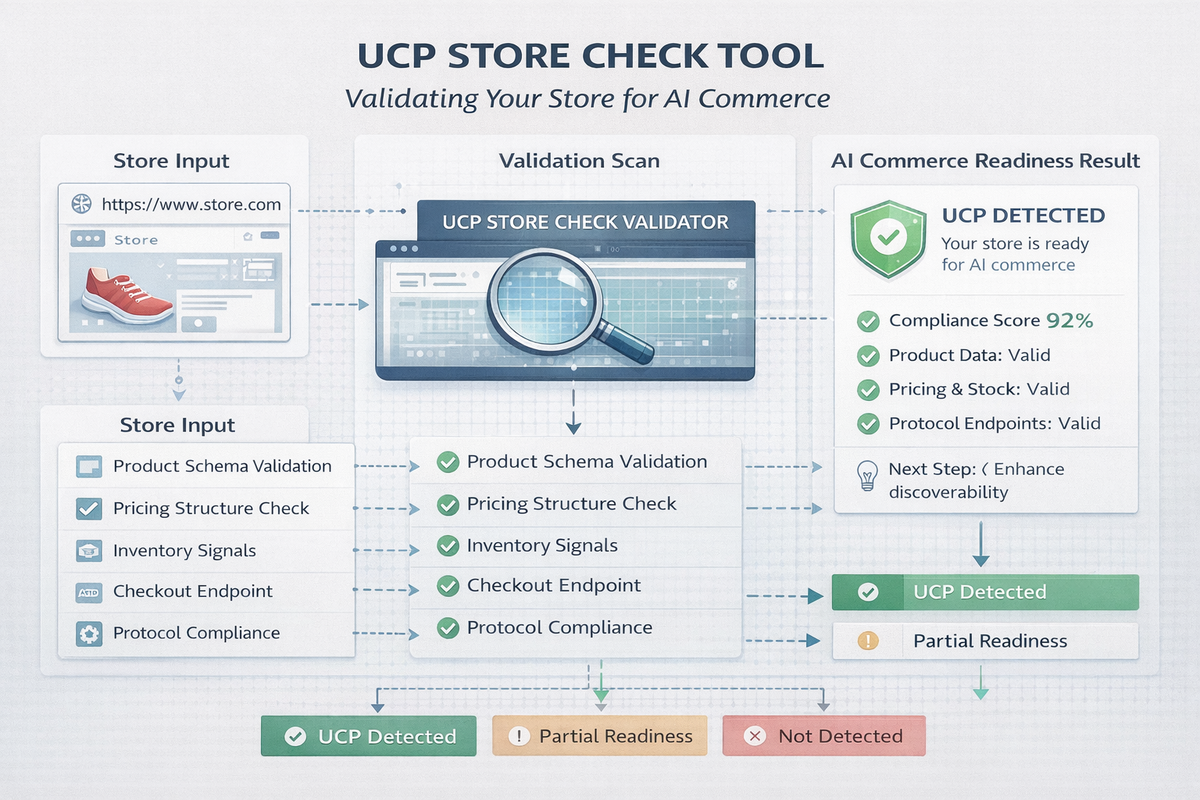
Google's Universal Commerce Protocol (UCP) is rewriting how AI agents interact with online stores. But there's a critical first step every merchant needs to take: publishing a valid /.well-known/ucp profile that tells AI agents what your store can do. Get it wrong and agents simply skip you. Get it right and your products become discoverable, purchasable, and returnable — all through AI-driven conversations.
The problem? There's been no easy way to check whether your UCP profile is correctly configured — until now. Vibe Mind's UCP Store Check tool validates your store's UCP profile against the full specification, reports exactly what's passing, what's failing, and what needs attention. It's free, requires no sign-up, and works in seconds.
In this guide, we'll walk through every feature of the tool step by step — from checking a live store URL to validating raw JSON, understanding the results, and troubleshooting common issues.
What Is UCP and Why Does Your Store Need It?
Think of UCP as robots.txt for AI commerce. Just as robots.txt tells search engine crawlers how to navigate your site, the /.well-known/ucp file tells AI agents what commerce capabilities your store supports — product search, checkout, inventory lookup, payments, returns, and more.
The protocol was launched by Google in January 2026 and co-developed with Shopify, Walmart, Target, Etsy, and Wayfair. It enables automated product discovery, AI-driven checkout, agent-to-agent commerce, and integration with multiple AI platforms through a single open standard. With 15% of retail transactions already agent-mediated and projections reaching 50%+ by late 2026, having a valid UCP profile is quickly becoming essential.
The UCP profile is a JSON file hosted at a well-known URL path on your domain. The UCP Store Check tool validates that this file exists, is properly structured, and meets the UCP specification requirements.
Before You Start
You'll need one of the following:
A live store URL — Your ecommerce store must be publicly accessible and serve a JSON file at https://your-store.com/.well-known/ucp.
A UCP profile JSON — The JSON content you want to validate, either copied to your clipboard or saved as a .json file.
No account or sign-up is required. The tool is completely free.
Method 1: Check a Live Store URL
This is the most common workflow. You have a live store and want to verify its UCP profile is correctly deployed.
Step 1. Open vibemindsolutions.ai/tools/ucp-store-check in your browser.
Step 2. Make sure the "Check URL" tab is selected (it's the default).
Step 3. Enter your store's base URL in the "Store URL" input field — for example, https://store.example.com. You can omit the https:// prefix; the tool adds it automatically. Don't include the /.well-known/ucp path — the tool appends that for you.
Step 4. Click "Check Store".
Step 5. Wait for the results to appear below the form. The tool fetches https://your-store.com/.well-known/ucp, parses the JSON response, validates it against the UCP specification, and displays a detailed report with pass/fail/warning status for each check.
Method 2: Validate JSON Directly
Use this when you're building or editing your UCP profile and want to validate it before deploying to production.
Step 1. Click the "Validate JSON" tab to switch to JSON input mode.
Step 2. Paste your UCP profile JSON into the text area. The placeholder shows the expected format: {"ucp": {"version": "2025-01-01", ...}}
Step 3. Click "Validate".
Results appear instantly. If the JSON is malformed (trailing commas, missing quotes, single quotes instead of double), the first check — "Valid JSON" — will fail and show a parse error message pointing you to the issue.
Method 3: Upload a JSON File
If your UCP profile is saved as a .json file, you can upload it directly.
Step 1. Click the "Validate JSON" tab.
Step 2. Click the "Upload" button (next to the Validate button).
Step 3. Select your .json file from the file picker. Maximum file size is 1 MB, and only .json files are accepted.
Step 4. The file contents load into the text area automatically. Click "Validate" to run the checks.
Method 4: Try the Built-In Example
Not sure what a valid UCP profile looks like? Start here.
Step 1. Click the "Validate JSON" tab.
Step 2. Click "Try Example".
A complete, fully compliant sample profile loads and validates automatically. Review the results to understand what a passing profile looks like before building your own. This is especially helpful for developers encountering UCP for the first time.
Understanding the Validation Results
After running a check, the results section appears with one of three overall statuses:
UCP Detected (green banner) — All checks passed. Your profile is fully compliant and ready for AI agents.
Partial UCP Profile (amber banner) — Some checks passed but there are warnings or a small number of failures. The profile needs attention before it's production-ready.
UCP Not Detected (red banner) — Multiple critical checks failed. The profile is not compliant or was not found at the expected URL.
The results include a progress bar showing the percentage of checks passed (e.g., "14/16 checks passed"), grouped checks organized into expandable accordion sections by category with badge counts for failures and warnings, and individual checks each displaying a colored status icon (green = pass, red = fail, amber = warning, blue = info) with a label and optional detail text. A Raw JSON Viewer at the bottom lets you inspect the raw profile with a copy-to-clipboard button.
The Six Validation Categories
The tool runs checks across six categories that cover the full UCP specification:
1. Profile Structure — Validates the fundamental JSON structure. The input must be parseable JSON, the top level must be an object (not an array), it must contain a "ucp" root key, and should include a signing_keys array.
2. Version & Compliance — Checks that ucp.version exists, is a string, and follows the YYYY-MM-DD date format (e.g., "2025-01-01").
3. Services — Validates the declared commerce services under ucp.services. Each service key must use reverse-domain naming (e.g., dev.ucp.shopping.catalog), specify a valid transport type (rest, mcp, a2a, or embedded), and include an endpoint URL for rest and mcp transports.
4. Capabilities — Validates the store capabilities under ucp.capabilities. All keys must use reverse-domain naming, and each capability should have a version field.
5. Payment Handlers — Validates payment integrations under ucp.payment_handlers. Handler keys must use reverse-domain naming (e.g., dev.ucp.payments.stripe), and each handler must have an id field.
6. Signing Keys — Validates the cryptographic signing keys in the signing_keys array. Each key must have a Key ID (kid) and Key Type (kty). Elliptic Curve keys additionally require crv, x, and y fields.
What a Valid UCP Profile Looks Like
Here's a complete, passing UCP profile you can use as a template. It declares three services (catalog, checkout, inventory), three capabilities (search, recommendations, returns), one payment handler (Stripe), and one EC signing key:
{
  "ucp": {
    "version": "2025-01-01",
    "services": {
      "dev.ucp.shopping.catalog": {
        "transport": "rest",
        "endpoint": "https://store.example.com/api/v1/catalog",
        "schema": "https://ucp.dev/schemas/shopping/catalog/v1"
      },
      "dev.ucp.shopping.checkout": {
        "transport": "rest",
        "endpoint": "https://store.example.com/api/v1/checkout",
        "schema": "https://ucp.dev/schemas/shopping/checkout/v1"
      },
      "dev.ucp.shopping.inventory": {
        "transport": "mcp",
        "endpoint": "https://store.example.com/mcp/inventory",
        "schema": "https://ucp.dev/schemas/shopping/inventory/v1"
      }
    },
    "capabilities": {
      "dev.ucp.shopping.search": {
        "version": "2025-01-01",
        "spec": "https://ucp.dev/specs/shopping/search/v1"
      },
      "dev.ucp.shopping.recommendations": {
        "version": "2025-01-01",
        "spec": "https://ucp.dev/specs/shopping/recommendations/v1"
      },
      "dev.ucp.shopping.returns": {
        "version": "2025-01-01",
        "spec": "https://ucp.dev/specs/shopping/returns/v1"
      }
    },
    "payment_handlers": {
      "dev.ucp.payments.stripe": {
        "id": "stripe-live-001",
        "version": "2025-01-01",
        "spec": "https://ucp.dev/specs/payments/stripe/v1",
        "config": {
          "currencies": ["USD", "EUR", "GBP"],
          "methods": ["card", "apple_pay", "google_pay"]
        }
      }
    }
  },
  "signing_keys": [
    {
      "kid": "store-key-2025-01",
      "kty": "EC",
      "crv": "P-256",
      "x": "f83OJ3D2xF1Bg8vub9tLe1gHMzV76e8Tus9uPHvRVEU",
      "y": "x_FEzRu9m36HLN_tue659LNpXW6pCyStikYjKIWI5a0"
    }
  ]
}
The key structural points: ucp.version sits at the root as a date string. ucp.services maps reverse-domain keys to transport and endpoint declarations. ucp.capabilities and ucp.payment_handlers follow the same naming pattern. signing_keys is a sibling to ucp (not nested inside it) and uses the JWK format (RFC 7517).
Troubleshooting Common Issues
"Check Failed — Could not reach the store" — Verify the URL is correct and publicly accessible. Ensure the /.well-known/ucp path isn't blocked by a firewall, WAF, or CDN rule. Check that the server returns Content-Type: application/json.
"Invalid URL" — Make sure the URL is properly formatted (e.g., https://store.example.com). Don't include the /.well-known/ucp path — the tool appends it automatically.
"Valid JSON" check fails — Your JSON has a syntax error. The most common mistakes are trailing commas after the last item, missing quotes around keys, and using single quotes instead of double quotes. Run your JSON through a linter like jsonlint.com to find the exact issue.
"Service keys use reverse-domain naming" fails — Service, capability, and payment handler keys must follow the pattern segment.segment.segment (at least 3 segments), where each segment starts with a lowercase letter and contains only lowercase letters and digits. Valid: dev.ucp.shopping.catalog. Invalid: shopping-catalog, UCP.Shopping.Catalog, catalog.
"File too large" error — Uploaded JSON files must be under 1 MB. Reduce the file size or paste the content directly into the text area.
signing_keys warning — The signing_keys field is recommended but not strictly required. Adding it enables secure, authenticated communication between AI agents and your store — it's strongly advised for production deployments.
The Takeaway
Getting your UCP profile right is the gateway to agentic commerce. The UCP Store Check tool makes validation effortless — check a live URL, paste raw JSON, upload a file, or start with the built-in example to learn the format. Six validation categories cover everything from basic JSON structure to cryptographic signing keys, and the detailed results tell you exactly what to fix.
Whether you're a Shopify merchant with automatic UCP support, a developer building a custom integration, or an enterprise evaluating readiness — run the check, fix the warnings, and make your store AI-agent ready.


Member discussion: